
1) If you are currently logged in and know your old password: #
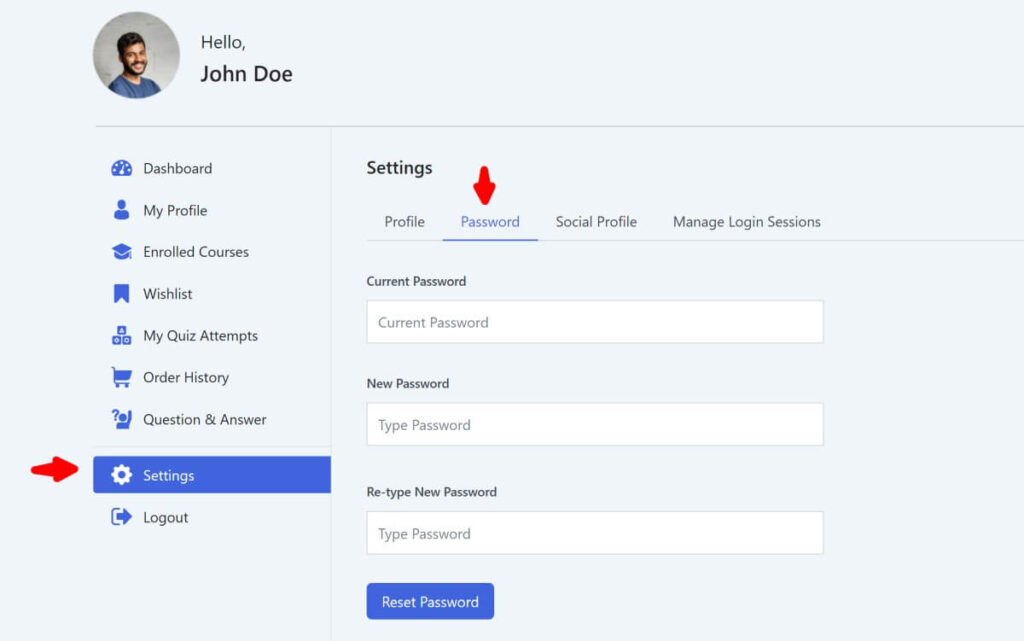
- Navigate to your account dashboard.
- From the side menu, select “Settings” and click on the “Password” tab.
- Enter your current password and the new password. Re-type the new password and click the “Reset password” button.
- You should see a success message confirming that your new password has been set.
2) If you cannot log in, forgot your password, or want to reset your password: #
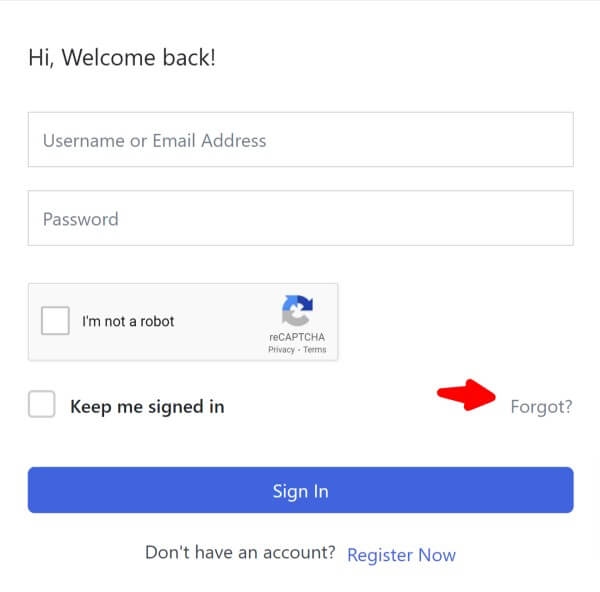
- Go to the login page.
- Click on the “Forgot” link.
- Enter your username or email address. You will receive a link to create a new password via email.
- If you see the Google Captcha box, check the box in the captcha, then click the “Reset Password” button.
- You should receive an email to reset your password and restore access to your account.
A couple of quick tips:
- If you see a message about login sessions, just click “Clear all sessions” and try again.
- If you encounter “Nonce verification failed”, it simply means your login couldn’t be verified on the first attempt—just try again, and it should work.
If you encounter any issues, please contact us.